Register a New Company
The Register New Company feature allows Tier 2 users to create a new company profile within the Docket Management System.
All required fields are clearly marked with an asterisk (*), and the registration is subject to review and approval by PRC staff.
1. Access the Register New Company Form
- Log in to your account as a Tier 2 user.
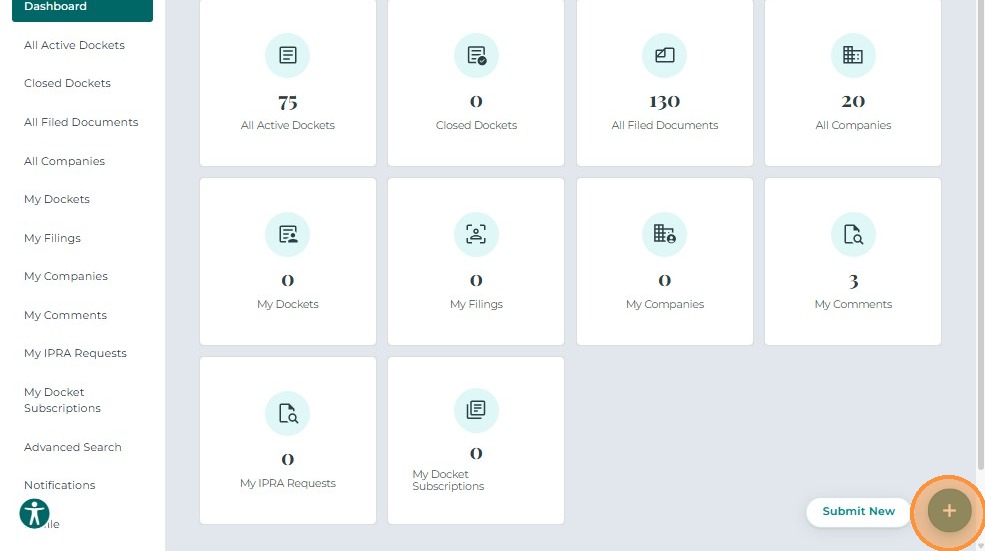
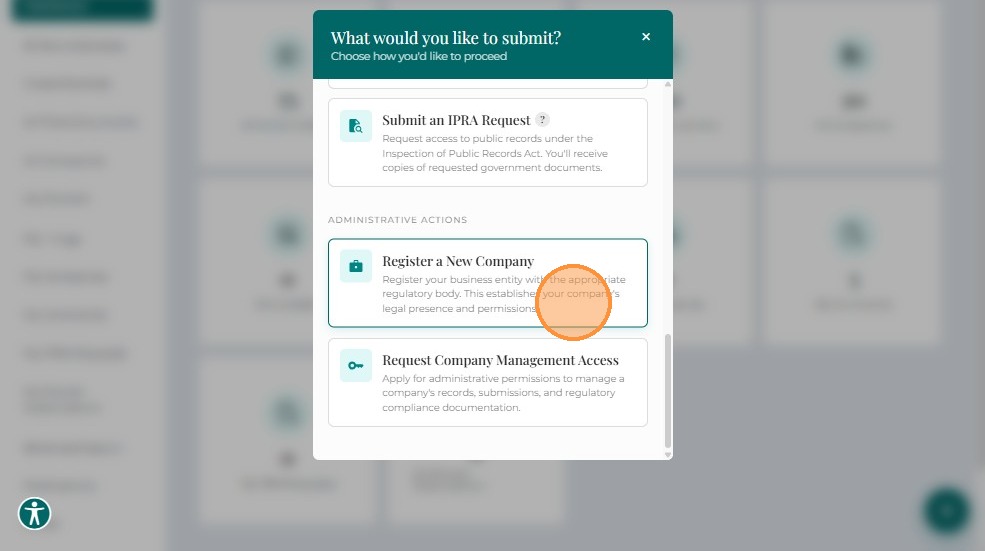
- From your Dashboard, click + Submit New in the bottom-right corner.
- Select Register New Company from the list of available options.
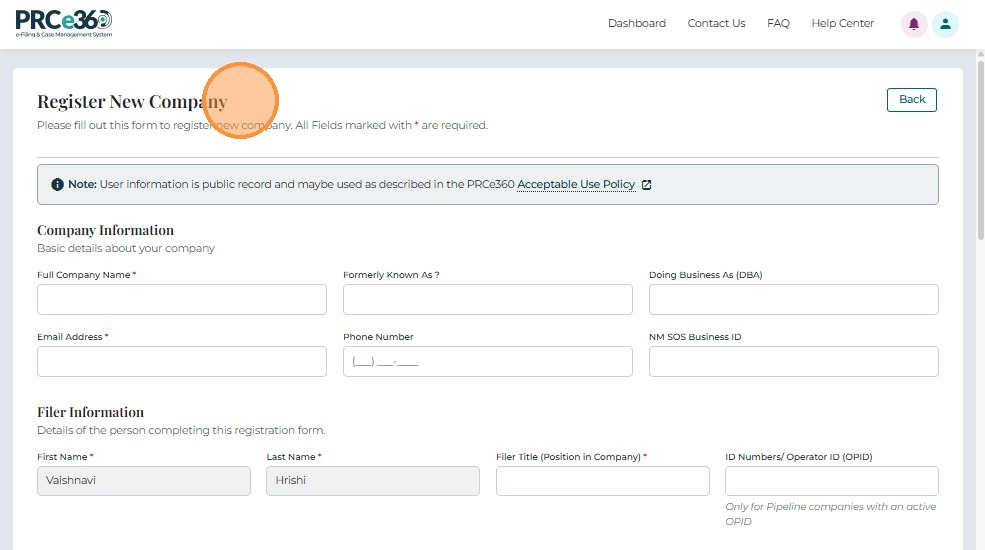
The Register New Company form will open, displaying all sections required to complete the registration.
2. Company Information
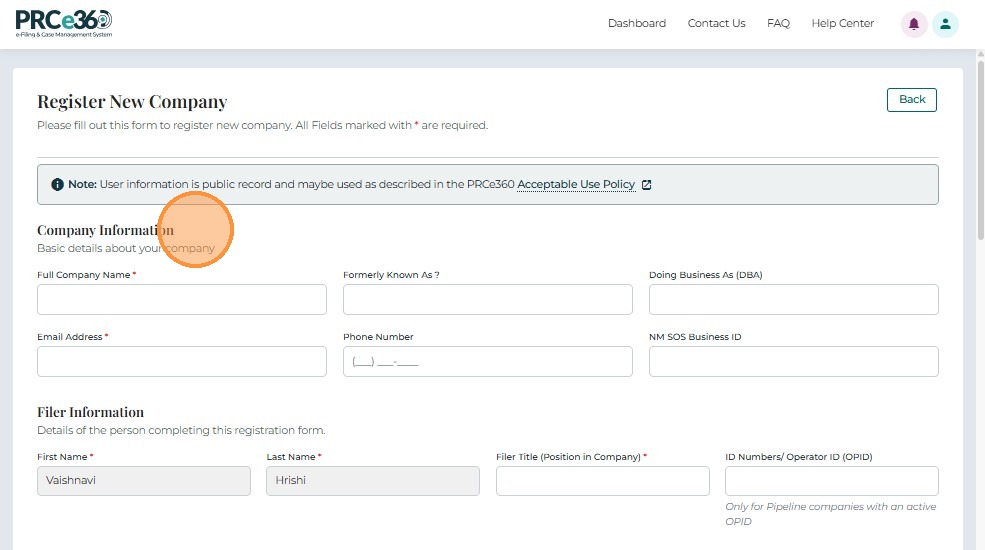
Provide the company's basic identification and contact details.
- Full Company Name* – Official legal name of the company.
- Formerly Known As – Previous name, if applicable.
- Doing Business As (DBA) – Trade or alternate business name.
- Email Address* – Primary business email.
- Phone Number – Company contact number.
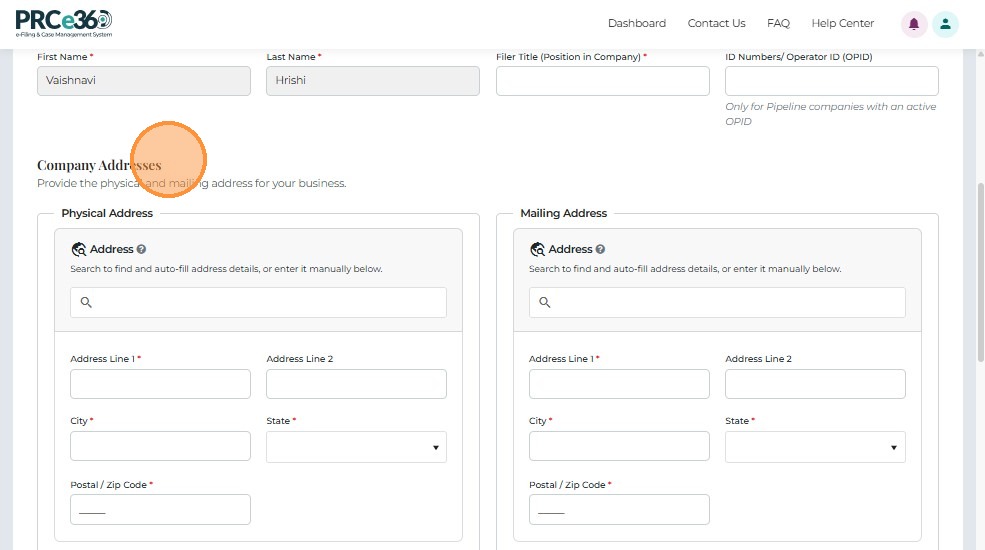
3. Filer Information
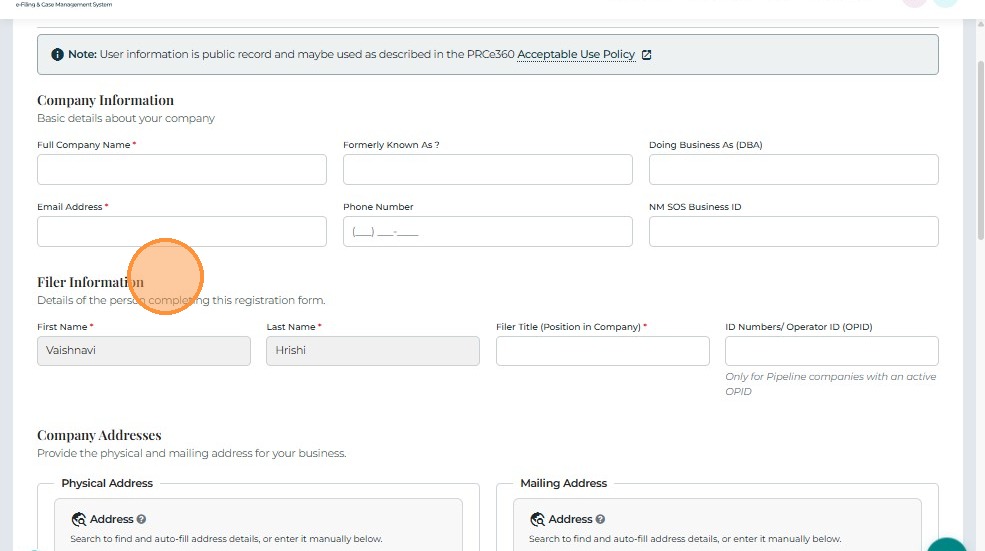
Identify the individual submitting the company registration.
- First Name* – Filer's first name.
- Last Name* – Filer's last name.
- Filer Title (Position in Company)* – Role or position of the filer.
- ID Numbers / Operator ID (OPID) – For pipeline companies with an active OPID only.
4. Company Addresses
Enter both the Physical and Mailing addresses.
Physical Address
- Address Line 1*
- Address Line 2 (Optional)
- City*
- State* – Select from the dropdown list.
- Postal / ZIP Code*
Mailing Address
- Same fields as above, used for correspondence.
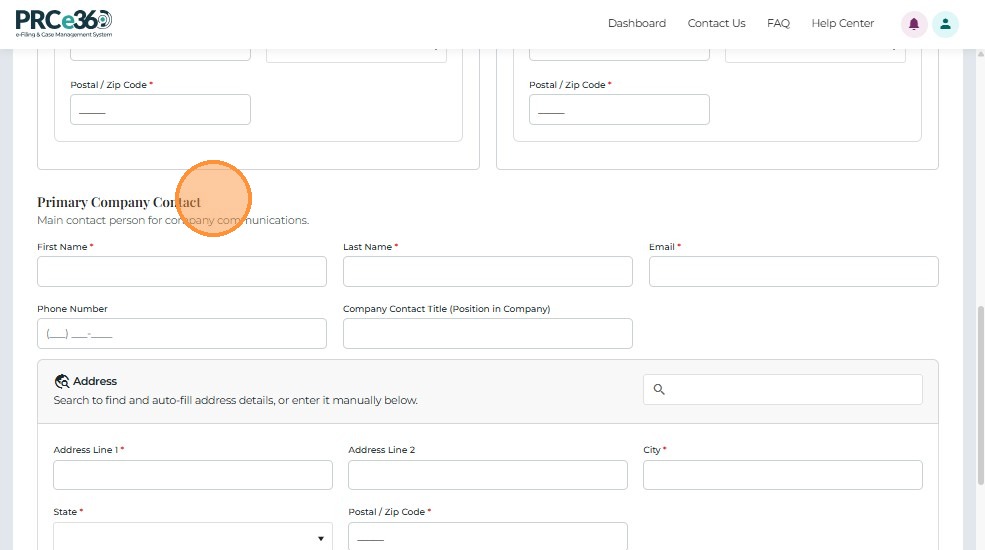
5. Primary Company Contact
Designate the company's main contact person.
- First Name*, Last Name*
- Email*
- Phone Number
- Address Line 1, Address Line 2, City, State, Postal / ZIP Code
- Company Contact Title (Position in Company)
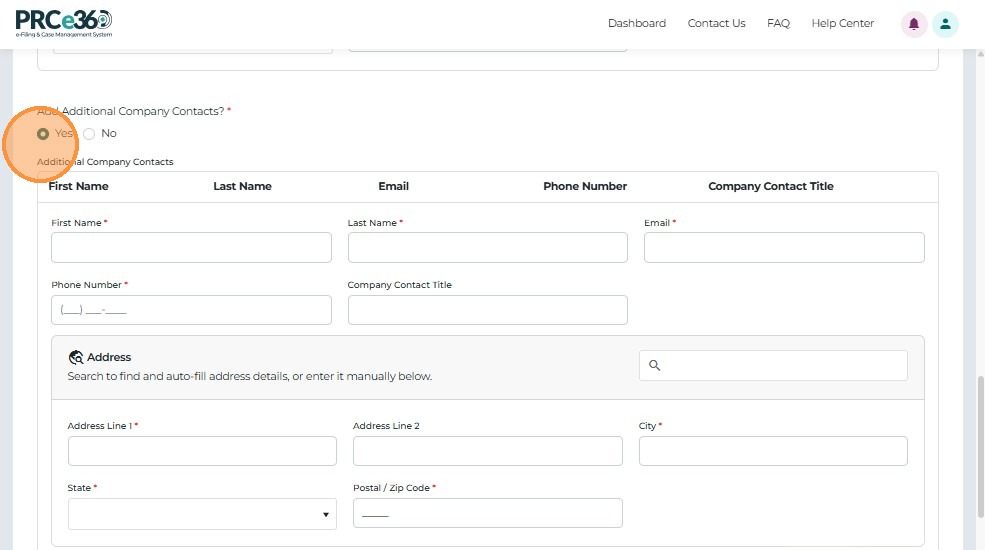
6. Additional Company Contacts
Specify if there are additional company contacts.
- Add Additional Company Contacts?* – Yes / No radio buttons.
- If Yes, the form expands to allow entry of multiple contacts.
- Click + Add Party to include more contacts as needed.
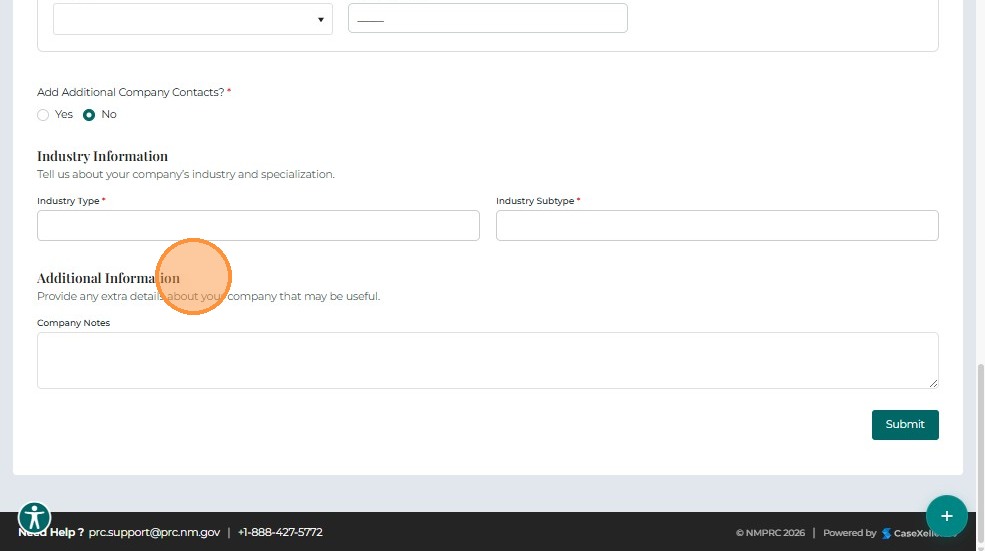
7. Industry Information
Select the industry classification for the company.
- Industry Type* – Dropdown for primary industry category.
- Industry Subtype* – Dropdown for sub-industry or specialization.
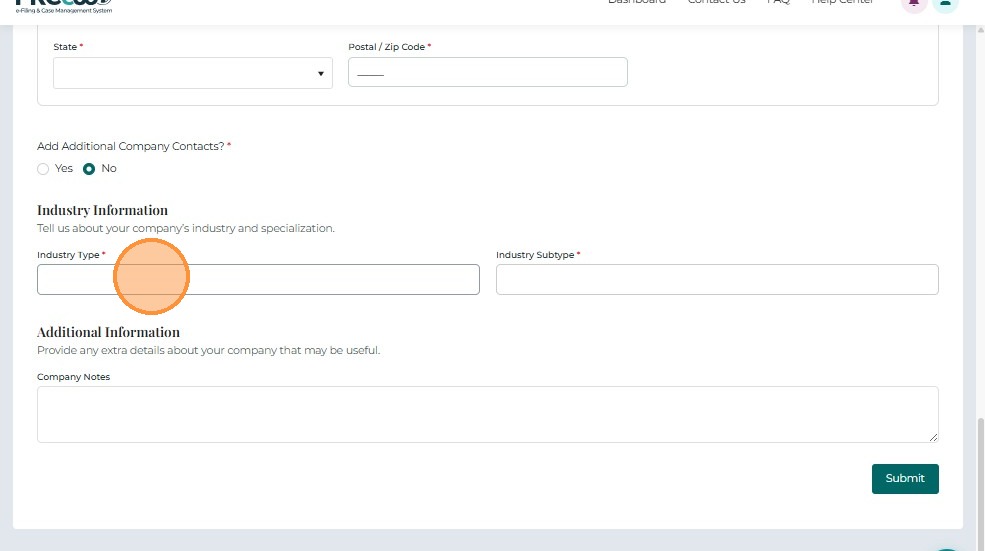
8. Additional Information
Provide any supplemental notes related to the company registration.
- Company Notes – Optional free-text field for extra details or context.
9. Submit the Registration Request
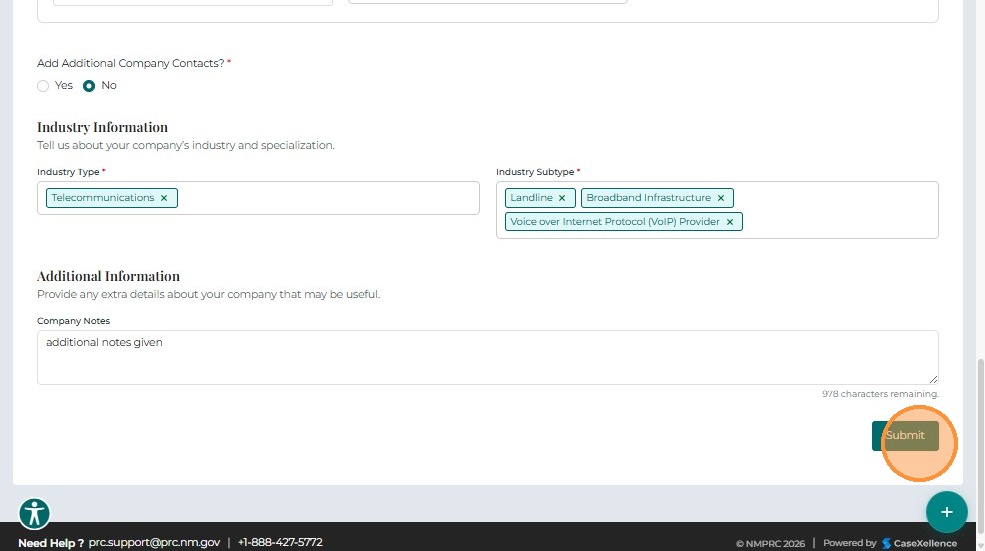
After completing all required fields:
- Review the entered details.
- Click Submit to send the registration request for review.
10. Access Approval Process
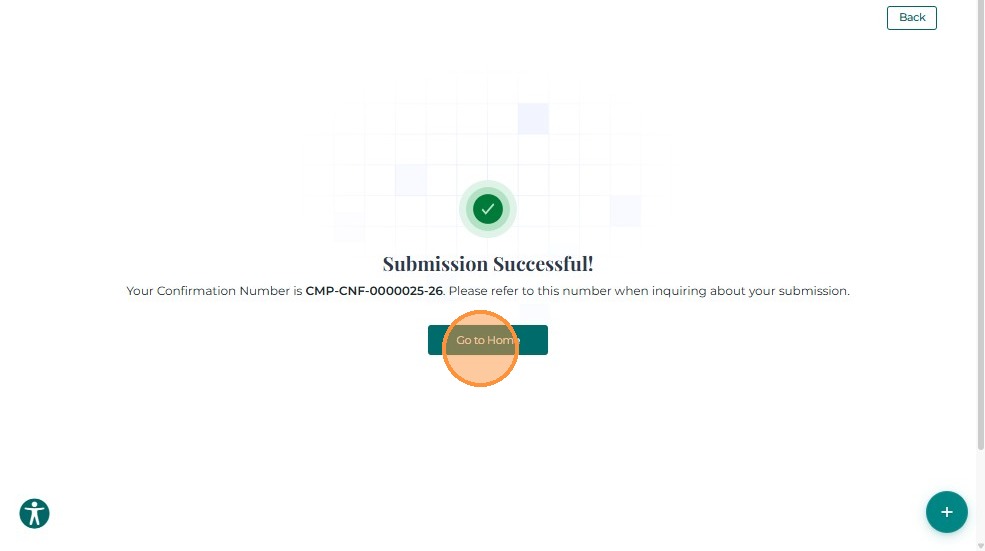
After submission, PRC staff will review the company registration request.
-
If Approved:
- The filer receives an automated approval email.
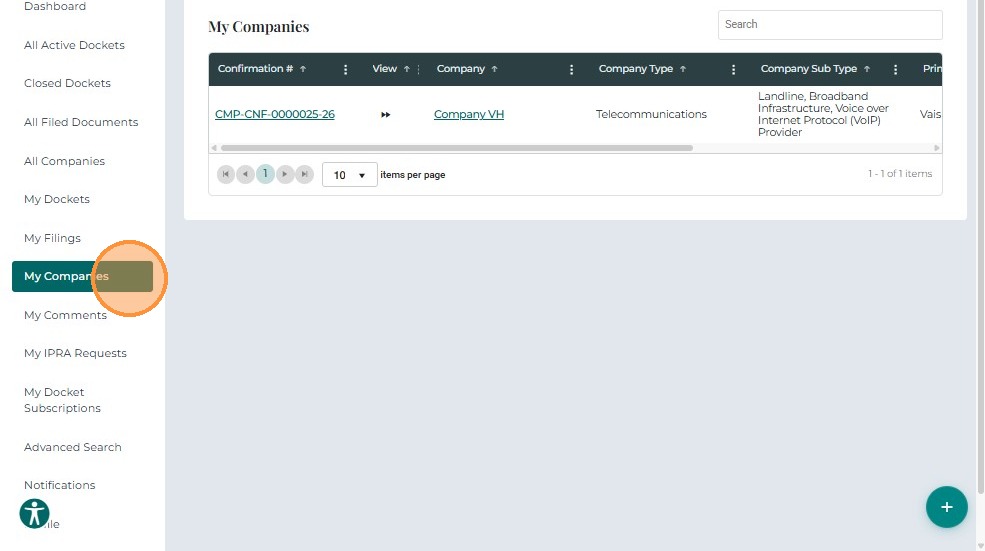
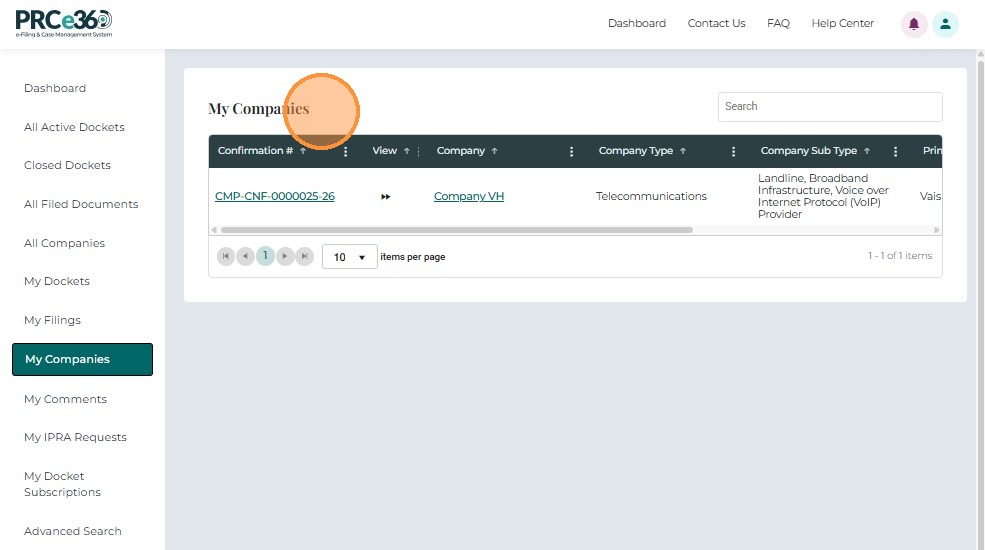
- The newly registered company appears in the My Companies section of the dashboard.
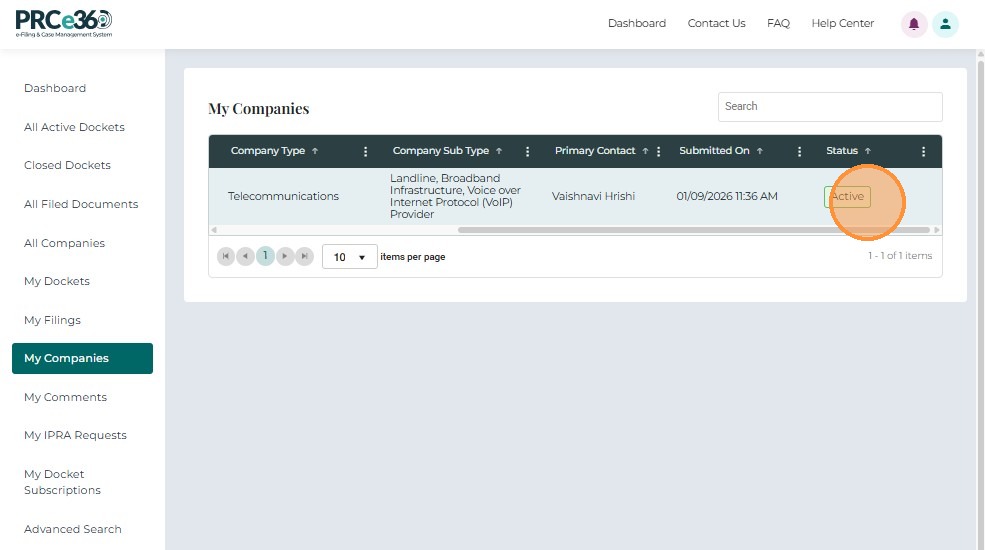
- Clicking the company name or confirmation ID opens the Company 360 screen showing Active status.
-
If Rejected:
- The filer receives an automated email with the rejection reason.
- The company appears in the dashboard with Inactive status.